





One moment your Sim is cooking dinner, and the next they’re frozen in place like a statue. They ignore commands, repeat the same animation, or refuse to move at all. If you’ve played The Sims 4 long enough, you know this glitch can happen when you least expect it.
The good news is that it usually takes only a few seconds to fix. Learning how to reset a Sim in Sims 4 is one of the most useful tricks any player can know. Instead of restarting the entire game, you can quickly refresh a stuck Sim and continue playing your story without losing progress.
In this guide, I’ll show you the fastest methods I personally use to fix frozen Sims, including cheat commands, debug resets, and a few clever tricks that work even without cheats. Whether you’re playing on PC, Mac, PlayStation, or Xbox, these solutions will help you get your household back to normal in no time.
Why Sims Freeze or Get Stuck in The Sims 4

Before fixing the problem, I like to understand why it happens. Sims can become unresponsive for several reasons.
Sometimes a Sim becomes stuck because of a broken animation or an interaction that fails to complete. Other times, the issue appears after installing mods in the computer or custom content. Large households, pathfinding errors, or objects blocking a Sim’s movement can also cause freezing.
When a glitch interrupts gameplay, knowing how to reset a Sim in Sims 4 becomes extremely useful because it clears the Sim’s action queue and refreshes their state without affecting progress.
Method 1: ResetSim Cheat Command (Fastest Fix)
The simplest and most direct fix I use is the ResetSim cheat. This method works quickly and usually does not require enabling testing cheats first.
Step 1: Open the Cheat Console
Start by opening the cheat console depending on your platform.
PC: Press Ctrl + Shift + C
Mac: Press Command + Shift + C
PlayStation: Press L1 + L2 + R1 + R2
Xbox: Press LB + LT + RB + RT
A command box will appear at the top of the screen.
Step 2: Enter the Reset Command
Next, type the following code:
resetsim Firstname Lastname
Example:
resetsim Bella Goth
Press Enter, and the game immediately resets the Sim.
Reset All Sims at Once
If several Sims glitch at the same time, you can perform a global reset.
Type:
resetsim *
This attempts to reset every Sim in the current world.
Method 2: Shift-Click Debug Reset (Most Reliable)
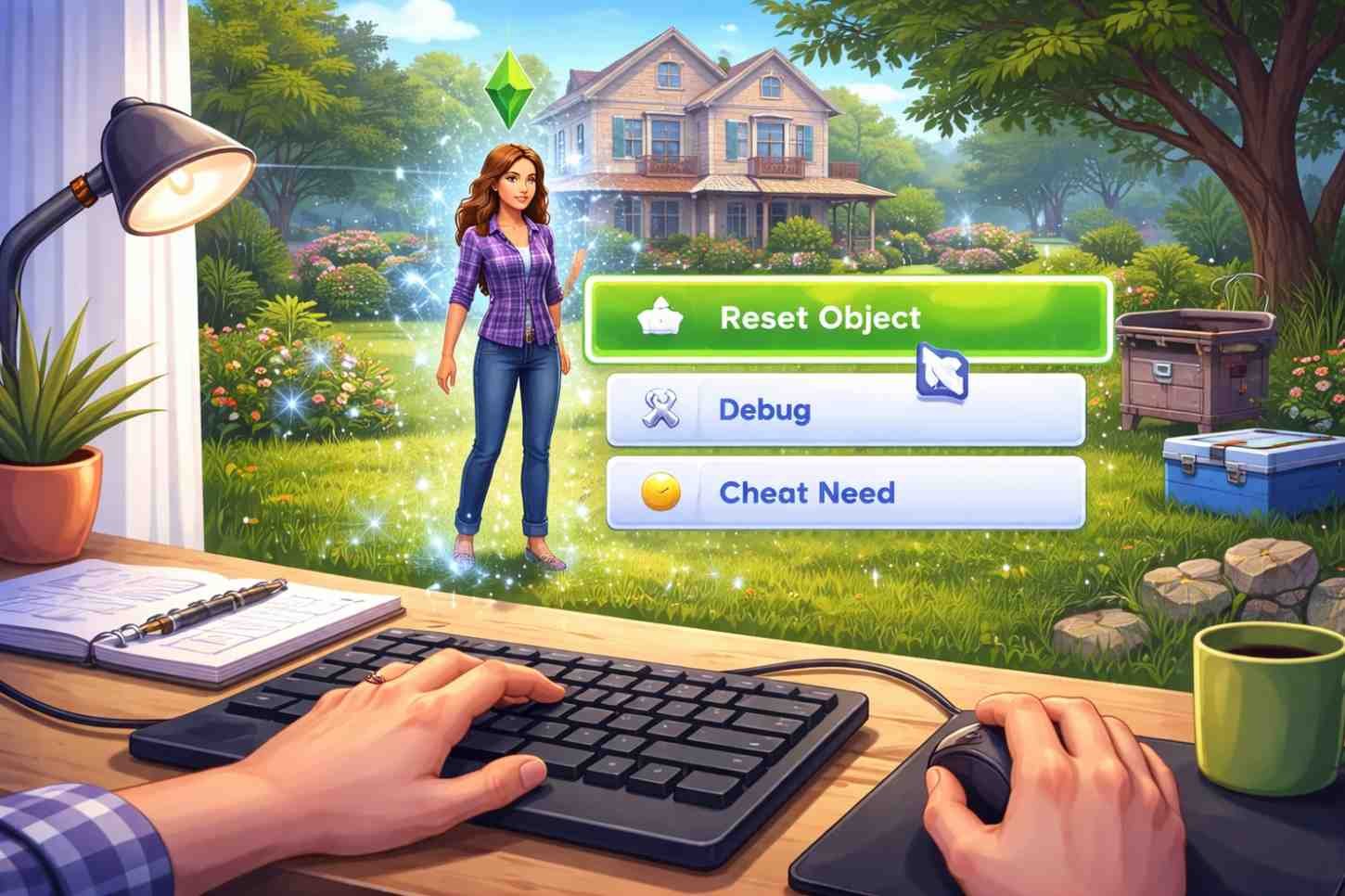
Some glitches are stubborn and require a different method. In those situations, I use the debug reset option.
Step 1: Enable Testing Cheats
Open the cheat console again and type:
testingcheats true
Press Enter.
Step 2: Reset the Sim
Use the interaction menu based on your platform.
PC/Mac
Hold Shift and click the Sim
Select Reset Object (Debug)
PlayStation
Hold Circle and press X on the Sim
Xbox
Hold B and press A on the Sim
Choose Reset Object (Debug) to refresh the Sim instantly.
This option often works better when animations or interactions break completely.
Method 3: Reset Sims Without Using Cheats
Sometimes I prefer not to open the cheat console. When I’m trying to keep things simple or avoid common tech mistakes slowing you down, these alternative methods work surprisingly well.
Travel to Another Lot
Using the phone to travel to a different lot forces the game to reload the environment. When I return home, the Sim usually behaves normally again.
Reload the Household
Another option is leaving the game world temporarily.
Open Manage Worlds, then reload your household. This refreshes the lot and removes many glitches.
Build Mode Object Trick
A lesser-known trick involves Build Mode.
Place a piece of furniture, like a chair or couch, directly on top of the stuck Sim. The game forces the character to move to the nearest open tile, effectively freeing them.
These methods provide alternative fixes when learning how to reset a Sim in Sims 4 without cheats.
What Happens After Resetting a Sim
After performing a reset, the Sim usually appears in a neutral standing position in the nearest open space.
The game clears their current action queue, which removes any broken interactions. Temporary moodlets may disappear, but core elements such as relationships, skills, careers, and needs remain unchanged.
Because of this, resetting a Sim is safe and does not affect long-term gameplay progress.
Why a Sim Might Still Be Stuck

Occasionally, resetting once does not completely fix the issue.
When that happens, I usually try a few extra troubleshooting steps.
Restarting the game often clears memory bugs that appear during long play sessions. Removing outdated mods can also resolve conflicts that break animations. If multiple Sims freeze frequently, updating the game and installed expansions may help restore stability.
Knowing how to reset a Sim in Sims 4 is useful, but maintaining updated mods and game files helps prevent many problems entirely.
Frequently Asked Questions (FAQs)
1. Why is my Sim frozen and not responding?
A Sim usually freezes because of a broken interaction, animation error, or pathfinding issue. Resetting the Sim clears their action queue and restores normal behavior.
2. Can you reset a Sim without enabling cheats?
Yes. Traveling to another lot, reloading the household from Manage Worlds, or forcing movement using Build Mode can fix many stuck Sims.
3. Does resetting a Sim delete progress?
No. Resetting a Sim does not remove skills, relationships, careers, or household progress. It only cancels the Sim’s current actions.
4. Can mods cause Sims to freeze?
Yes. Outdated mods and custom content can cause glitches or broken interactions. Updating or temporarily removing mods often resolves these issues.
Final Thoughts
Gameplay glitches occasionally happen in large simulation games like The Sims 4. Fortunately, fixing them is usually simple. Once you know the available reset methods, frozen Sims become a minor inconvenience instead of a serious gameplay problem.
Whether you use the cheat command, debug menu, or a quick travel reload, these techniques allow you to continue playing without restarting the entire game.
Featured Image Credit: taylorsaurus guides