




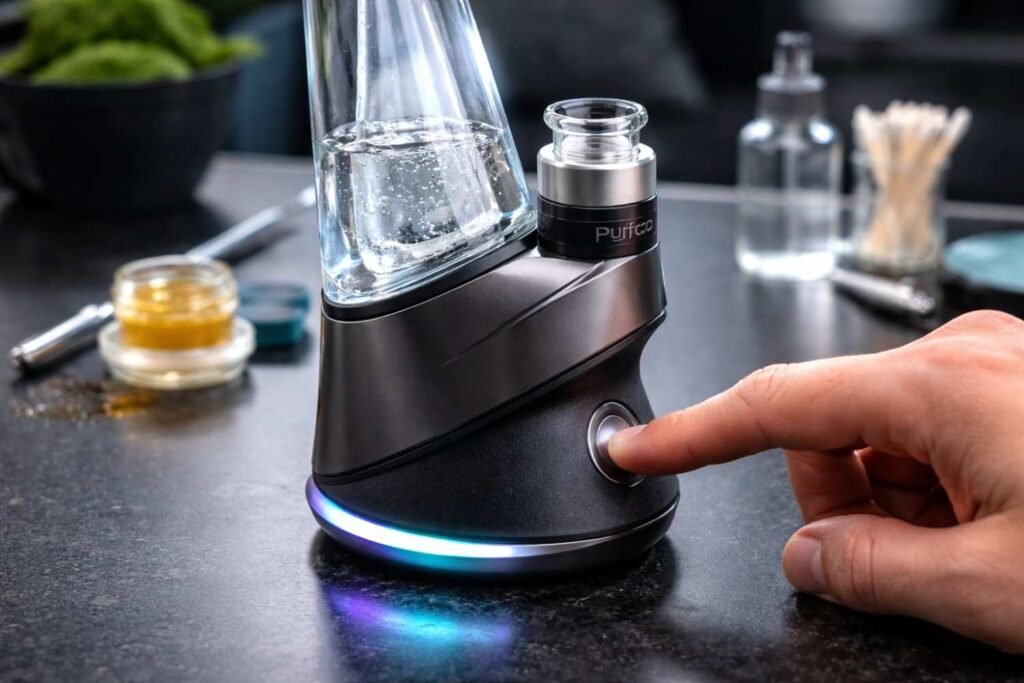
Smart vaporizers like the Puffco Peak Pro deliver an incredible experience, but even the best devices occasionally run into glitches. I’ve personally dealt with moments where the device froze mid-session, refused to connect to the app, or displayed strange flashing lights.
Learning how to reset Puffco Peak Pro can solve many of these issues quickly without needing repairs or replacement parts. In this blog, I’ll walk through the different reset options, explain when each method works best, and share practical troubleshooting tips that Peak Pro users across the United States commonly rely on.
Why Resetting a Puffco Peak Pro Fixes Many Problems
The Puffco Peak Pro includes firmware, Bluetooth connectivity, and customizable heating profiles. Because it functions like a smart device, occasional software hiccups can happen.
Resetting the device refreshes the internal system and often clears problems like:
- Bluetooth pairing failures
- device freezing or not responding
- heating inconsistencies
- firmware update errors
- chamber connection glitches
Before assuming your atomizer or battery is faulty, resetting the device is usually the fastest troubleshooting step.
What Should You Check Before Resetting the Device?
Before jumping into a reset, I usually check a few simple things first. Many issues actually come from maintenance or connection problems rather than software errors.
Check the Battery Level
A very low battery can cause the Peak Pro to behave unpredictably. Make sure the device has enough charge before troubleshooting.
Inspect the Chamber Connection
Flashing red and white lights typically indicate a chamber connection error rather than a software problem.
Try this first:
- Unscrew the chamber
- Clean the gold connection pins using 90% or higher isopropyl alcohol
- Reattach the chamber firmly
Often this resolves the issue immediately.
Make Sure the Puffco App Is Updated
An outdated app can cause pairing failures. Updating the Puffco Connect app ensures compatibility with the device firmware.
How to Reset Puffco Peak Pro Using a Factory Reset
A factory reset is the most powerful reset option. I typically use this when persistent glitches or Bluetooth issues continue even after basic troubleshooting.
Follow these steps carefully.
Step 1: Hold the Power Button
Press and hold the power button continuously for 20 seconds.
Step 2: Wait for the Reset Cycle
During the reset process, the device will run through its internal reboot sequence.
Step 3: Allow the Device to Restart
Once the reset finishes, the Peak Pro will reboot automatically and return to normal operation.
This method clears most firmware-related glitches and often restores proper Bluetooth functionality.
How to Power Cycle the Device (Soft Reset)
If the device temporarily freezes or stops responding, a soft reset is usually enough.
Here’s the process I typically follow.
Step 1: Turn the Device Off
Press and hold the power button for about 10 seconds until the lights turn off.
Step 2: Wait 30 Seconds
Let the device rest briefly so the internal system fully shuts down.
Step 3: Turn the Device Back On
Press the power button again to restart the Peak Pro.
This quick method often resolves minor freezing or temporary heating errors.
How to Enter Bluetooth Pairing Mode
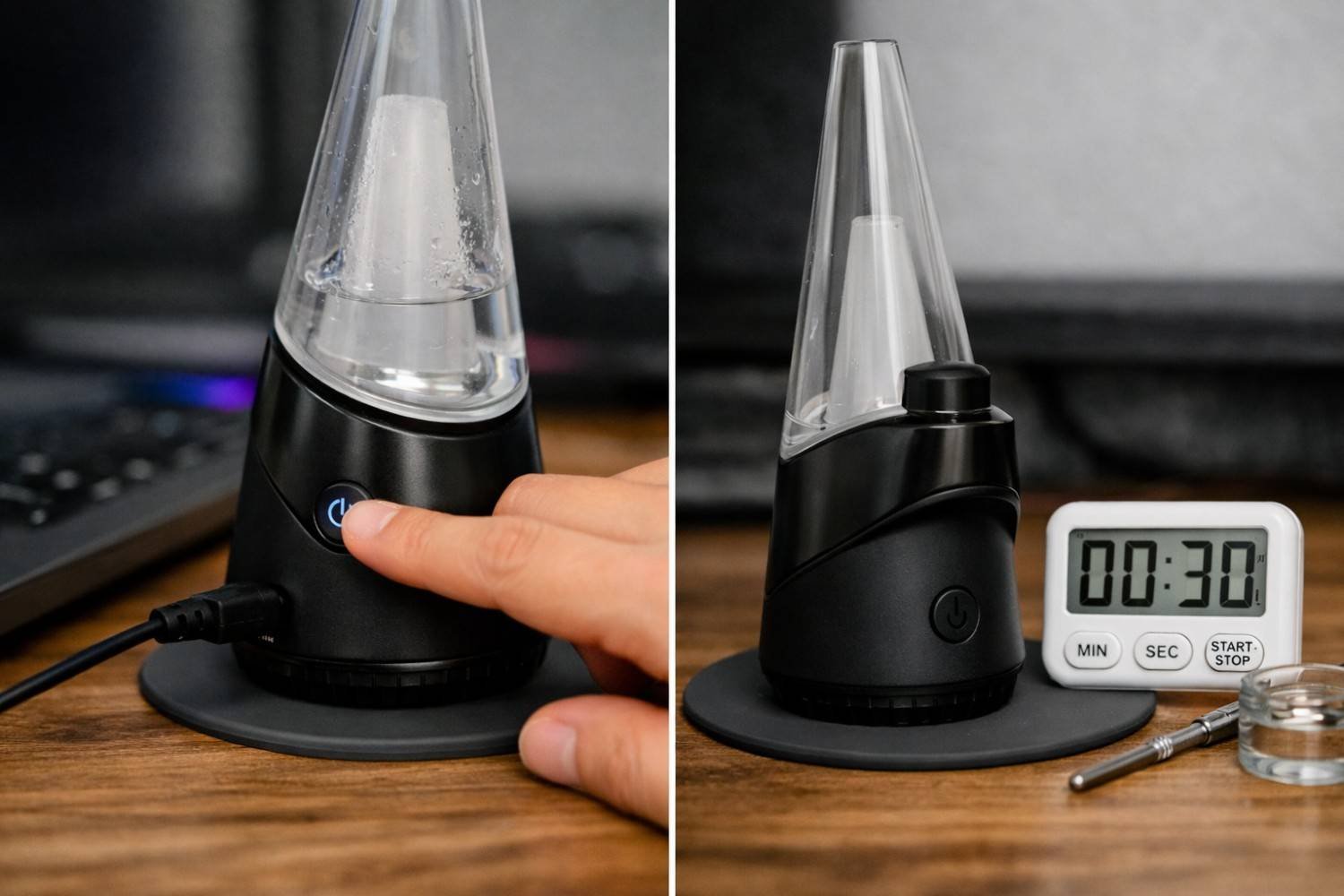
If your device won’t connect to the Puffco Connect app, resetting the Bluetooth pairing mode may help.
To reconnect:
- Hold the power button for 6 seconds
- Watch for the blue pulsing light bar
- Open the Puffco Connect app and reconnect the device
I’ve found that this method fixes most pairing issues without requiring a full reset.
How to Exit Stealth Mode
Sometimes users believe their device is malfunctioning when the lights disappear. In reality, the device may simply be in Stealth Mode.
To toggle the lights back on:
Press the button four times quickly.
The lights should immediately return to normal operation.
What to Do if a Firmware Update Fails
Occasionally firmware updates stall or fail mid-process. If that happens, try this recovery method.
- Connect the device to a charger
- Leave it charging for about 10 minutes
- Restart the Puffco Connect app
- Resume the firmware update process
This usually restores the update and prevents system instability.
Common Puffco Peak Pro Error Signals Explained
Understanding device light signals can help diagnose issues faster.
Red and White Flashing Lights
This usually means the chamber is not properly connected or the connection pins are dirty.
Cleaning the connection points typically solves the issue.
No Lights but Device Still Works
This often indicates Stealth Mode rather than a malfunction.
App Connection Failure
Bluetooth pairing issues can usually be fixed by reconnecting through pairing mode or performing a factory reset.
Maintenance Tips That Prevent Most Peak Pro Problems
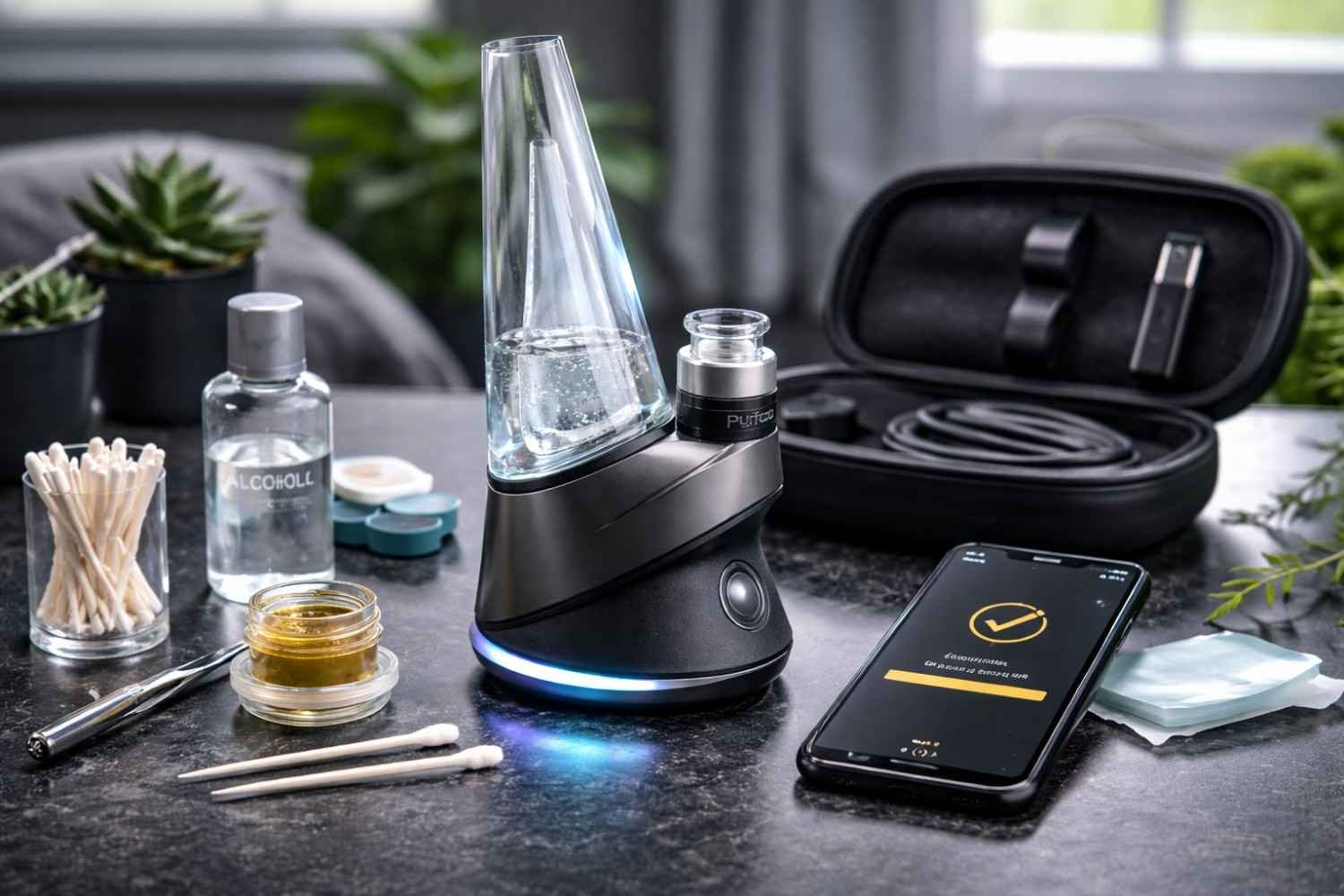
After using the Peak Pro for a while, I’ve noticed that good maintenance prevents many of the problems people try to solve with resets.
Cleaning the chamber regularly keeps the heating system consistent. Residue buildup can interfere with proper temperature control.
Keeping firmware updated also improves stability. Puffco periodically releases updates that address software bugs and connectivity improvements.
Proper storage matters too. Avoid leaving the device in extreme heat or moisture, as these conditions can affect battery health and internal electronics.
Frequently Asked Questions
1. How long does it take to reset the device?
Most resets take less than one minute. A soft reset takes around 40 seconds, while a full factory reset may take slightly longer as the system reboots.
2. Will resetting erase firmware updates?
No. A reset usually refreshes the system without removing installed firmware updates.
3. Why is my Puffco Peak Pro still not working after a reset?
If problems continue after resetting, the issue may involve the atomizer, battery, or chamber connection rather than software.
4. Can resetting fix Bluetooth pairing problems?
Yes. Resetting the device or entering Bluetooth pairing mode often resolves connection failures with the Puffco Connect app.
Final Thoughts
Knowing how to reset Puffco Peak Pro can save a lot of frustration when the device behaves unexpectedly. Many issues that appear serious at first are actually minor glitches that a simple reset or quick cleaning can fix.
With proper maintenance, firmware updates, and basic troubleshooting knowledge, the Peak Pro can deliver consistent performance and smooth sessions for years.